Keyed hub
A hub carries a pulley, a gear or a lever on a shaft, and a key in the keyway of its bore takes the torque. As a sketch, it is two circles and a keyway trimmed into the bore. Model the hub from the drawing in planex2d or in any CAD system, then check its area and centroid against the values at the end of the page. A solution in planex2d follows.

[1]:
import math
import planex as px
The circles and the keyway
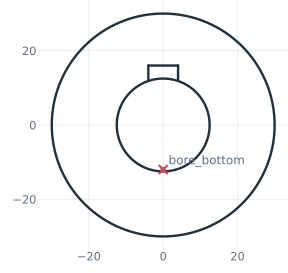
The hub is drawn as two circles around the origin, the outside and the bore, and the keyway as three lines from the bore up, its left side, its top and its right side. The lines are drawn roughly, the sides starting near the bore, and the dimensions in the next section give them their place and size. A vertex at the bottom of the bore is the point that the keyway’s depth is measured from. auto_constraint turns what the drawing shows exactly into constraints. The two circles drawn at one
center stay concentric, and with "horizontal" and "vertical" switched on, the keyway’s lines, drawn level and plumb, stay so (Figure 1).
[3]:
hub = px.Sketch(auto_constraint={"horizontal": True, "vertical": True})
hub.Circle(60 / 2, id="outside")
hub.Circle(25 / 2, id="bore")
hub.Move((-4, 12), dir=(0, 1)).Line(4, id="keyway_left")  # dir=: the pen points up
hub.Turn(-90).Line(8, id="keyway_top")  # Turn(-90) turns the pen right, Turn(90) left
hub.Turn(-90).Line(4, id="keyway_right")
hub.Vertex("bore_bottom", (0, -12));
The dimensions
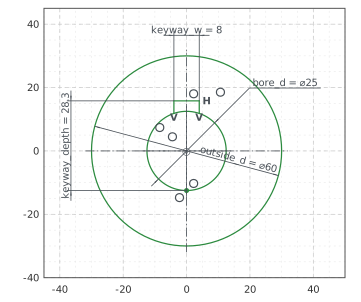
The outside’s center, which the bore shares, is the origin. The sides of the keyway start on the bore, and its top has its middle on the vertical axis. The keyway’s depth runs from the far side of the bore to the keyway’s top, 28.3 for a bore of 25, a size that a caliper can check across the bore. The vertex lies on the bore and on the vertical axis, and the depth is its distance from the top. With these, nothing in the sketch is left free (Figure 2):
[5]:
hub.Constrain("outside.center", "origin", px.Coincident)
hub.Constrain("outside", px.Diameter, 60, id="outside_d")
hub.Constrain("bore", px.Diameter, 25, id="bore_d")
hub.Constrain("keyway_left.start", "bore", px.Coincident)  # a point on a circle
hub.Constrain("keyway_right.end", "bore", px.Coincident)
hub.Constrain("keyway_top", px.Distance, 8, id="keyway_w")
hub.Constrain("keyway_top.mid", "V", px.Coincident)
hub.Constrain("bore_bottom", "bore", px.Coincident)
hub.Constrain("bore_bottom", "V", px.Coincident)
hub.Constrain("bore_bottom", "keyway_top", px.Distance, 28.3, id="keyway_depth")
print("status", hub.status, "| degrees of freedom", hub.dof)
status full | degrees of freedom 0
Trimming
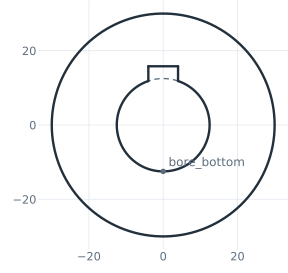
The dimensions have put the ends of the keyway’s sides on the bore, so Trim can cut the bore there. The piece between the sides becomes construction, and the bore and the keyway form one outline (Figure 3).
[7]:
hub.Trim(("bore", (0, 12.5))); # the piece of the bore nearest to (0, 12.5), between the sides, becomes construction
The checks
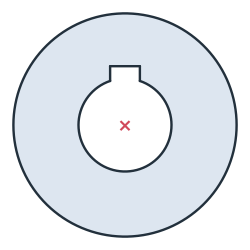
These are the area and the centroid of the hub, with its center at the origin, to compare with your own model. The area is the ring between the outside and the bore, less the keyway beyond the bore. That is the rectangle 8 wide from the bore’s center up to the keyway’s top, 28.3 − 12.5, less the part of the bore inside it. The keyway takes material above the center, so the centroid lies just below it, on the vertical axis (Figure 4):
[9]:
face = hub.Face()
under = 4 * math.sqrt(12.5**2 - 4**2) + 12.5**2 * math.asin(4 / 12.5)  # the part of the bore inside the rectangle: above its center, |x| < 4
exact = math.pi / 4 * (60**2 - 25**2) - (8 * (28.3 - 12.5) - under)
c = face.center
print("area", round(face.mass, 2), "mm², exact", round(exact, 2))
print("centroid", round(-c[1], 3), "below the center, off the axis by", round(abs(c[0]), 6))
area 2308.43 mm², exact 2308.43
centroid 0.171 below the center, off the axis by 0.0
The hub as DXF in millimeters, for another CAD system or a laser cutter:
[11]:
hub.WriteDXF("keyed_hub.dxf", unit=px.mm, scale=1) # scale=1: the numbers as they are
The hub as DXF: keyed_hub.dxf