SVG
In Jupyter, a face, shape, wire, compound or sketch at the end of a cell shows itself as an SVG picture, without a plot call. ToSVG returns the same picture as text, for a web page, a report or a file. Arcs and circles are exact SVG arc commands in it, so the picture stays sharp at any zoom.
The example is the bell crank from matplotlib, shown as the last line of the cell:
[1]:
from IPython.display import SVG
import planex as px

bosses = [px.Circle((0, 0), 9).Face(), px.Circle((40, 0), 6).Face(), px.Circle((0, 30), 6).Face()]
arms = [px.Line((0, 0), (40, 0)).Offset(4), px.Line((0, 0), (0, 30)).Offset(4)]
holes = [px.Circle((0, 0), 4).Face(), px.Circle((40, 0), 3).Face(), px.Circle((0, 30), 3).Face()]
crank = px.Subtract([px.Unify(bosses + arms), *holes])
crank
[1]:
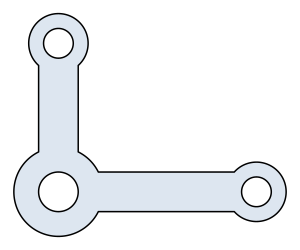
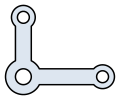
size sets the larger side of the picture in pixels:
[2]:
SVG(crank.ToSVG(size=120))
[2]:
Exact arcs
The arcs of the bosses and the round ends of the arms are single SVG arc commands, not polylines, which keeps the text short:
[3]:
svg = crank.ToSVG()
print(svg.count("A "), "arc commands,", len(svg), "characters")
26 arc commands, 1243 characters
To a file
The text is written to a file like any string:
[4]:
with open("bell-crank.svg", "w") as f:
    f.write(crank.ToSVG(size=600))
Large objects
Above px.config.max_preview_edges edges, 5000 by default, an object shows its text instead of the picture, which keeps notebooks fast. The limit can be raised for the session:
[5]:
px.config.max_preview_edges = 20000