Editing a sketch
These tools change elements that are already drawn. Each takes what is selected when it starts, or asks for its picks in the status line, and its options appear in the bar at the top left of the view. Lengths are in millimeters and angles in degrees.
The pictures on this page show the sketch of the connecting rod from the tour of the editor.
Corners
Fillet rounds a corner and Chamfer cuts it.
Click Fillet, then the corner, or the two elements that meet there.
Move the mouse to set the radius and click, or type the radius and press Enter.
Join makes the fillet a tangent arc or a curvature-continuous blend, and Whole chain rounds every corner of the chain at once. Chamfer picks a corner the same way. Its size is one length (3), two lengths (3, 5) or a length and an angle (3, 30°), and Reverse swaps the two sides.
A fillet’s radius and a chamfer’s length become dimensions of the sketch, so a double-click changes them later. A fillet of two corners makes one radius dimension for each. The dimensions that ran to the sharp corner keep measuring to it.
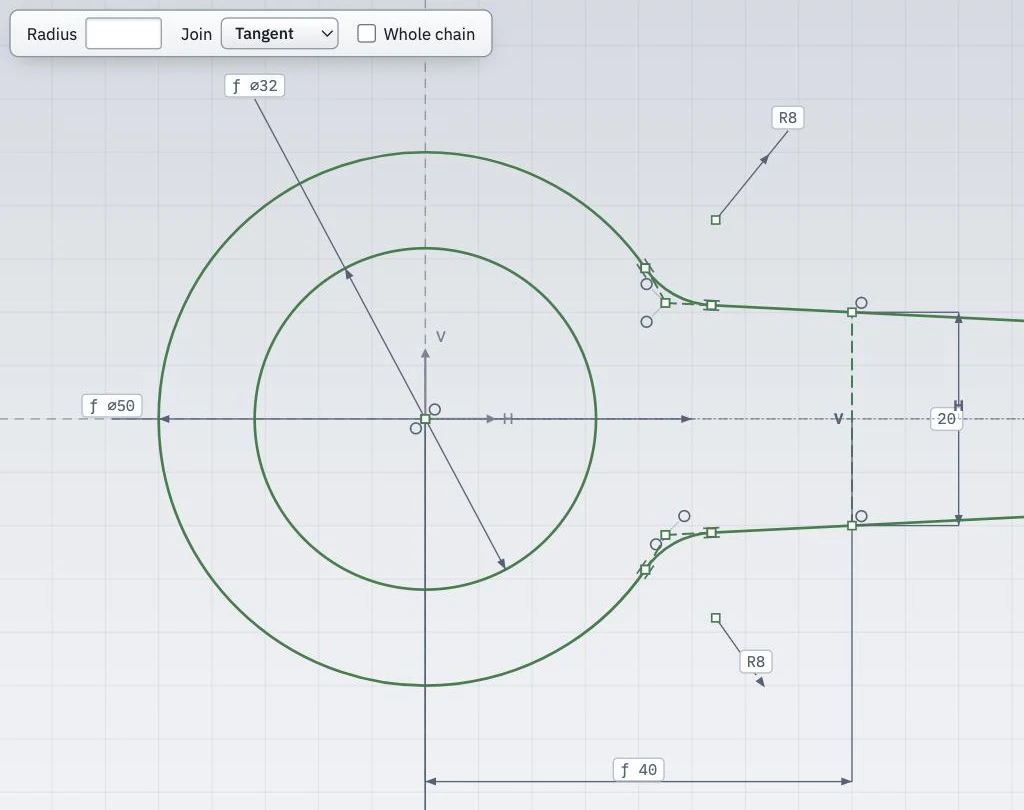
The rod’s two fillets of 8 mm at the big eye, with the Fillet options at the top of the view.
Cutting
Quick trim cuts away the piece of an element under the click, up to the elements that cross it. The rod’s outline is cut this way, where the shank’s lines run into the eyes.
Trim to cuts pieces away at a chosen element.
Click Trim to, then the element to cut at.
Click each piece to remove. Cut the next piece instead removes the piece next to the one clicked.
Split cuts elements into pieces where they meet a cutter, and keeps every piece.
Click Split, then the cutter.
Click each element to split.
With At every crossing, one click splits an element wherever others cross it, and Pieces stay on one line or circle keeps the pieces of a line in line and the arcs of a circle on one circle.
Copies
Mirror mirrors the selection about a line, or the H or V axis, clicked after it. As a copy keeps the originals, and without it the elements themselves move to the other side.
Offset draws an element, or its whole chain, at a distance. Moving to one side and clicking sets the distance, or it is typed. Both sides offsets to both sides at once. The corners of the offset come out round, sharp or chamfered, and with Both sides the ends of an open chain round, flat or square.
Circular pattern copies the selection around a center point, which is the origin, a vertex, the center of an arc or circle, or a point. The options set the number of instances and the angle between them, which is even over the full circle when left empty.
Linear pattern copies the selection along a line or axis, with the number of instances and their spacing, and with rows and their spacing for a grid. The copies go to the side the mouse is on, and Reverse and Reverse rows put them on the other side.

The options of Offset.
Copies made by a pattern or a mirror are Tied to the originals by default, so they follow when the originals change. Their constraints on the copies gives the copies the relations and dimensions of the originals as well. An offset always follows its source, and its distance is a dimension of the sketch.
Removing and undoing
Delete, or the Delete key, removes the selected elements, relations and dimensions. Undo and Redo step back and forth through the changes.
See Trimming, Offsets and Fillets and chamfers in the planex2d docs for how planex2d cuts, offsets and rounds.