Files
A part leaves the editor in two ways. A project file keeps everything needed to edit the part again, and a drawing or a model takes it to other programs. Both are written in the browser, and nothing is uploaded. The editor writes its files in millimeters.
Project files
New starts an empty part. Undo brings the previous part back.
Open reads a
.pxe2dproject file and builds the part again, step by step. A file saved with another version of planex2d opens with a note that names both versions.Save writes the part as a
.pxe2dfile. Where the browser allows it, Save asks for the file’s name and place first. Otherwise the file goes to the downloads. Ctrl+S, or Cmd+S on a Mac, saves too.
A project file holds the parameters, every sketch with its elements, relations and dimensions, every operation with its values, every simulation with its settings, the drawing with its pages and the STEP parts read into it, and the version of planex2d the part was made with. It holds no results of the simulations, which are solved again after opening.
The browser also keeps a copy of the last part on this computer, written shortly after every change. A reload or a closed tab brings it back, and the status line says so.
Importing a drawing
Import reads a DXF, SVG, STEP or BREP file and adds it to the tree as a result of its own.
Click Import and choose the file.
Check the reader’s options in the panel and click OK.
The options:
Scale. The file’s numbers are multiplied by this factor. The default of 1 takes them as drawn, so a drawing in millimeters stays in millimeters. With the field left empty, the reader converts the file into meters instead.
Unit. The unit the file counts in, as the file says or chosen from mm, cm, m, inch and pt.
Layers. For a DXF file, the layers to read, separated by commas. Empty reads all of them.
Join ends closer than. The tolerance within which the ends of separate lines are joined.
Interpret as drawn. For an SVG file. Unticked, the drawing is read as it looks, and its filled areas and the widths of its lines become faces. Ticked, only its lines count, as CAD and laser cutting programs write them. Each line is read along its path without its width, filled areas are left out, and lines whose ends meet are joined.
A DXF file is read as drawn, and its hatches are left out. The lines of a layer whose ends meet are joined into closed outlines, also where lines of another layer end at the same points.
The operations of the tree take an imported drawing like any other result, so it can be cut, combined or offset. It is not a sketch, though, and has no relations or dimensions to edit. See Files in the planex2d docs for what each reader takes from a file.
Saving a drawing or a model
Save as writes the selected results, or everything shown when nothing is selected. With a sketch open, it writes that sketch. Several results are written as they are, each with its own outline, so where two overlap the file holds both. To join them first, use Glue or a Boolean operation.
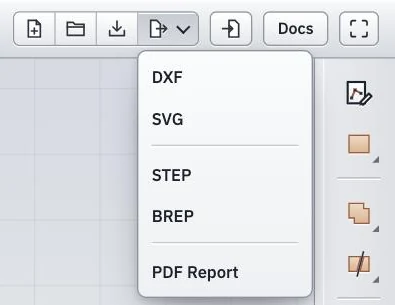
The Save as menu.
DXF and SVG write the outlines as drawings. A DXF file keeps arcs and circles as arcs and circles, which laser cutters and CAM programs expect.
STEP writes the faces as a planar model, with the names and mesh sizes set with Properties. CAD programs open it, and so do meshers such as netgen and gmsh.
BREP writes the same faces in OpenCASCADE’s own format, which keeps no names or other properties and no unit.
PDF Report writes the two-page report of a simulation, chosen in a list, and solves it first if it is not up to date. It is grayed out while the part has no simulation. See Simulations for the report.
In Drafting, Save as writes the open page of the drawing instead, as PDF, DXF or SVG. See Drafting for drawings with several pages.
For laser cutting, the contour checker finds open contours, gaps and doubled lines in a drawing before it goes to the machine. See STEP and BREP in the planex2d docs for the two model formats.