The Design tree
A part in the editor is a tree of operations. Each row is one step applied to the results before it, such as a sketch, a face made from it, a Boolean operation of two faces or a fillet of the result. A change early in the tree computes everything after it again, so a changed dimension in the first sketch changes the finished part. Lengths are in millimeters and angles in degrees.
The connecting rod of the tour of the editor takes eight operations. Its window is the offset of the rod’s face, minus a disc around each eye, rounded with a fillet of 2.5 mm and subtracted from the rod.
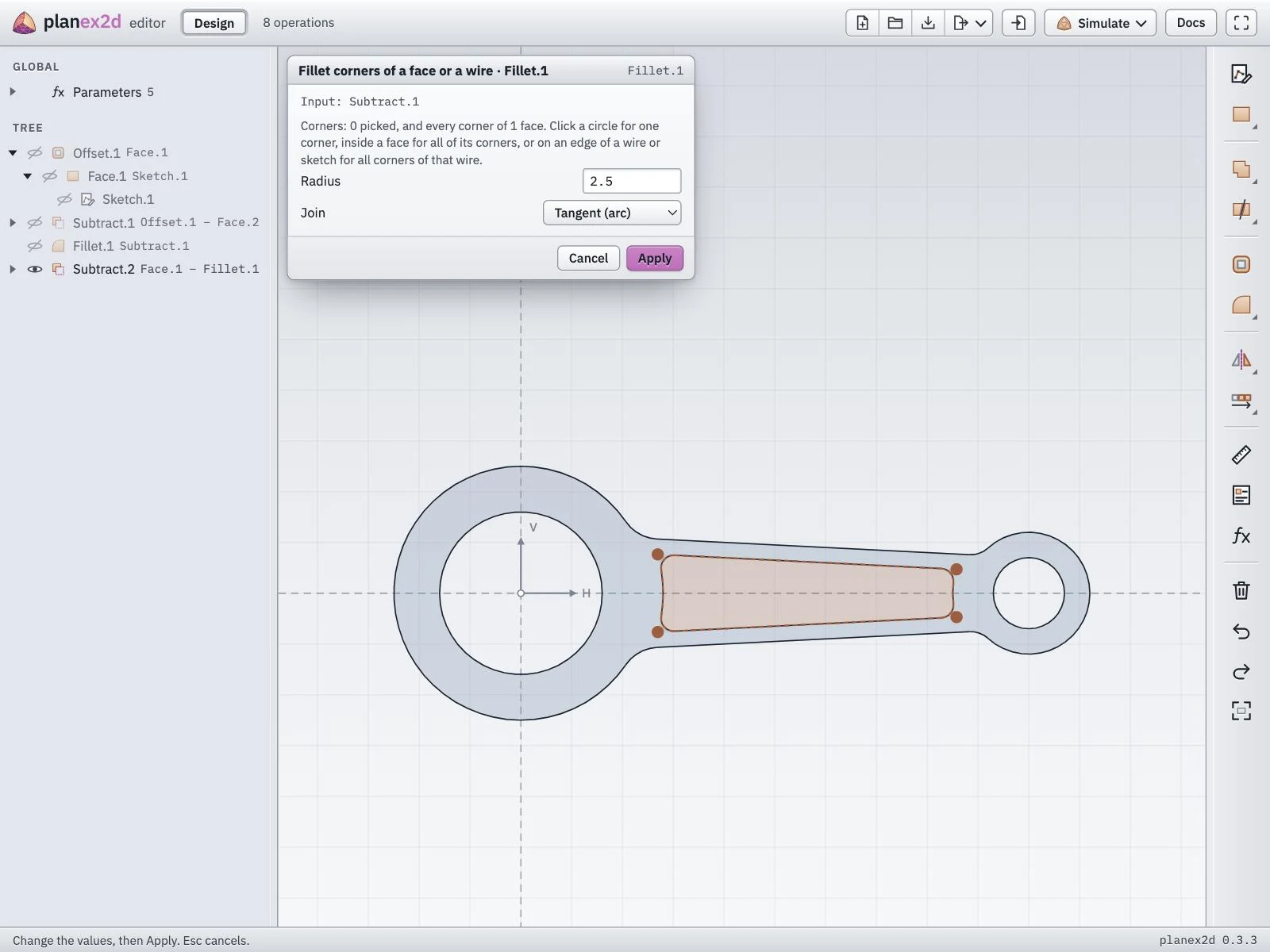
The fillet of the rod’s window, opened again from the tree.
The tree
Each row has an eye that shows or hides its result, the operation’s icon, its name and its inputs. The inputs of an operation nest under it and turn gray, since its result replaces them. A triangle in front of a row folds and unfolds what lies under it, and a mark at the right end warns of an error.
A click selects an operation, in the tree or in the view, and Shift, Ctrl or Cmd adds to the selection. A double-click opens an operation again, a sketch for drawing and every other operation in its panel with its values. A right-click on a row opens a menu to edit, rename, hide or show, copy, paste and delete it. Delete removes the selected operations, together with the operations that depend on them. Ctrl+C and Ctrl+V, or Cmd+C and Cmd+V, copy and paste operations as new ones.
Adding operations
Every tool takes the operations selected before it starts as its inputs.
Select the inputs in the tree or in the view.
Click the tool. A tool without options, such as a Boolean operation, applies at once. The others open their panel with the inputs filled in.
Set the values. The view shows the result while they change. Click OK to add the operation, or Cancel to drop it.
An operation opened again takes its changes with Apply. With nothing selected, the panel asks for its inputs, which are then picked in the view or in the tree.
From sketches to faces
New sketch starts a sketch. See Drawing in a sketch.
Face turns the closed regions of a sketch into a face, with loops inside an outline as holes. An imported drawing with outlines on several layers becomes faces layer by layer, glued together, so two outlines on different layers that share lines stay two faces. On a result glued from several faces, a click on one of them takes that face alone.
Wire takes a chain of a sketch’s elements. Continue across its ends takes the element alone, or continues it to every element joined end to end, or only across tangent or curvature-continuous joins. Whole sketch takes every chain of the sketch, cut where they cross.
Combining
Fuse unites faces, Subtract cuts the later inputs from the first, Intersect keeps their common part, and Symmetric difference keeps where exactly one of them lies.
Glue joins faces and wires into one shape in which every overlap is a face of its own, which is what a mesher needs for several materials.
Split cuts a result into pieces where a cutter crosses it.
Trim cuts a result with a cutter and chooses the pieces by its Pieces rule. It removes or keeps the piece at a click, keeps the largest or the smallest piece, or keeps the side of a face to the left or the right of the cutter.
Shaping
Offset grows or shrinks faces by a distance, with round, sharp or chamfered corners. The rod’s window starts as its face shrunk by 3 mm. A sketch or a wire is offset along its edges instead. The chains of a sketch, or several wires, are offset together, on both sides by default, and where their bands overlap they make one region. Result as Face gives that region, a stroke along the sketch, and Result as Wire gives its outline. With Both sides set to no, each chain is offset to one side. A closed chain then gives a loop outside it, or inside for a negative distance. An open chain gives a curve beside it that encloses no area, so the operation shows an error when the result is a face. A single wire on its own is offset to one side when it is closed and on both sides when it is open, unless Both sides says otherwise. Ends caps the open chains round, flat or square.
Fillet and Chamfer round or cut the corners of a face or a wire. A click on a corner picks that corner, a click inside a face picks all of its corners, and a click on an edge of a wire picks all the corners of that wire. A chamfer takes one length, a second length or an angle, and Swap the two edges swaps its sides.
Simplifying
Defeature cleans up a result with planex2d’s Simplified, for example a drawing imported for a mesh or a machine. It adds the cleaned copy to the tree as Defeature.1, and its input stays as it is. Its item folds open to the input and to four steps:
Small features closes gaps below a size, removes edges and faces below a size, and removes free edges, those that touch no other edge at either end. A small face can be merged into a neighbor instead.
Collinear lines merges lines that continue each other within a distance.
Arc fitting replaces runs of short edges by arcs within a tolerance.
Spline fitting replaces them by splines within a tolerance.
A click on the item or on a step colors the result’s edges by kind, lines, arcs, circles and splines, over the faint outline of the input, and a step also marks the edges it changes. The bar above the view holds the step’s options, a checkbox to turn it on and a slider with a box for each size, and the view follows every change. A new Defeature starts with sizes scaled to the part, arcs fitted within 1e-4 of its size and edges below 1e-6 of it removed. Holes, fillets, chamfers and notches are not removed by size. See Defeaturing and simplification in the planex2d docs for each step.
Placing copies
Mirror mirrors a result about a picked line, or about a point and an angle typed in, and keeps the original unless the option is off.
Move shifts a result along a picked line or by typed distances, and Rotate turns it about a center.
Linear pattern places copies in a row, or in rows for a grid, and Circular pattern places them around a center.
The panel of each operation offers the options of the planex2d call behind it. See Boolean operations in the planex2d docs for how faces are combined, cut and glued.