Measuring
Measure shows what planex2d computes for a pick, such as lengths, areas, centers and second moments in Design, and lengths and distances in a sketch. The values appear in a panel at the top right of the view, and Copy puts them on the clipboard. Lengths are in millimeters, areas in mm² and second moments in mm⁴.
In Design
Select a result in the tree, or nothing.
Click Measure in the toolbar. A selected result is measured at once.
With nothing selected, click a result, a corner or an edge in the view.
For a face, the panel lists these values:
Length and area. The length of its outline and its area.
Center. The centroid, which is also marked in the view.
Second moments. Ih, Iv and Ihv about the centroid, the principal moments I1 and I2, and the angle of the principal axis.
Bounding box, faces and edges. The box that holds the result, and how many faces and edges it has.
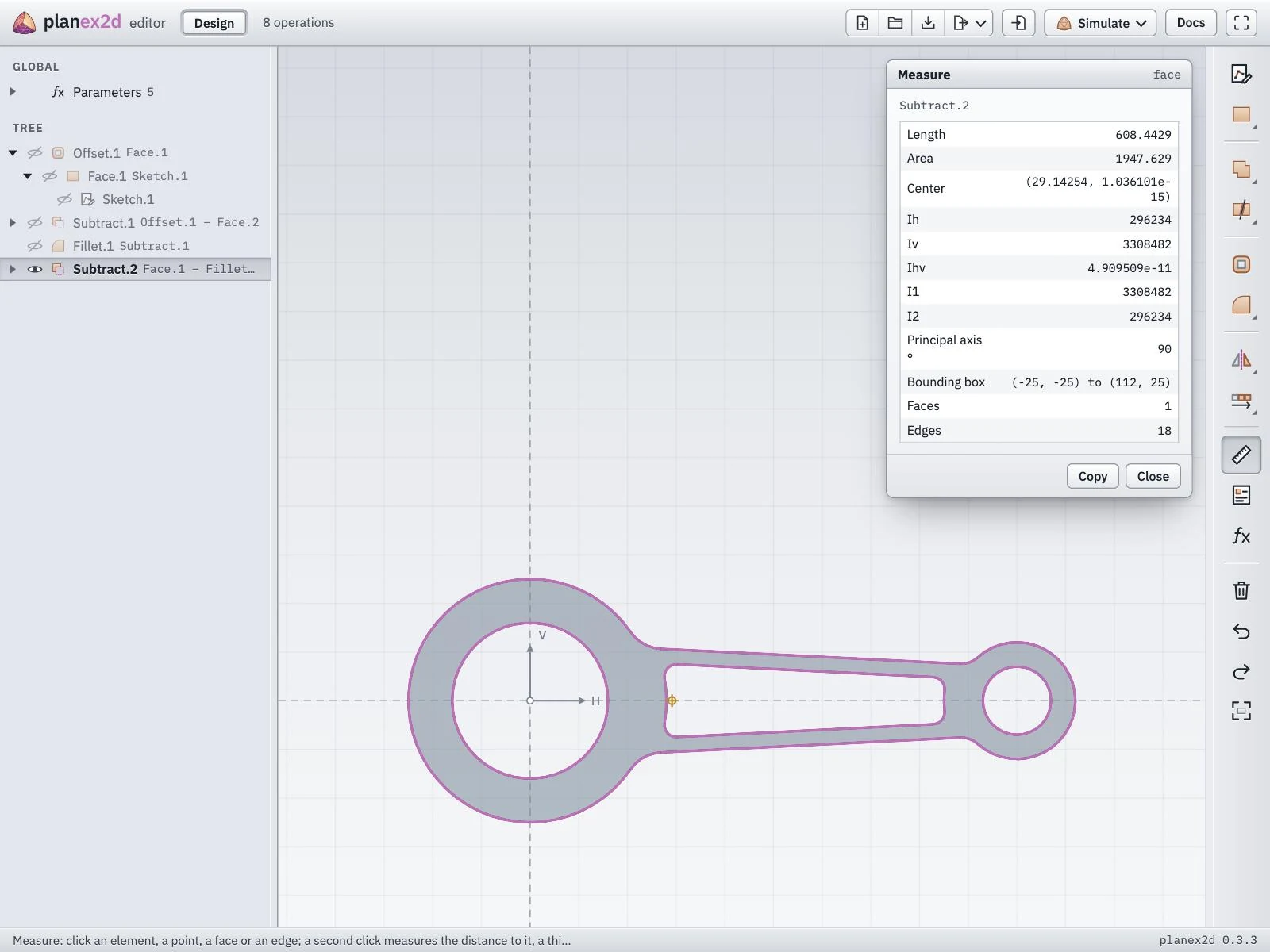
The values of the connecting rod, with its centroid marked.
An edge gives its length, and an arc or a circle its radius and center as well. A second click measures the distance to the first pick, with its horizontal and vertical parts ΔH and ΔV, and a third click starts again. The area and the second moments are the section properties of a cross-section, which the section properties tool also computes.
In a sketch
Open the sketch and click Measure.
Click an element. The panel shows its length, its center and its bounding box.
Click another element or point for the distance between the two. A third click starts again.
A click on empty space measures the whole sketch.
See Measuring in the planex2d docs for every measurement and its definition.