Tools / 2D CADExperimental
2D CAD in the browser
Draw parametric 2D parts with relations and dimensions, build them up in a tree of operations, and save them as DXF, SVG, STEP or BREP files. The editor simulates a part directly, from its stresses to its heat transfer and its natural frequencies, and its Drafting workbench puts it on dimensioned drawings. Everything runs in this tab, on Pyodide. Nothing is uploaded.
This tool brings planex2d's constraint sketches and operations to the browser as a 2D CAD editor. It is new and still being worked on, so it is experimental, and its tools may change between versions. Save a part you want to keep as a project file, and check a drawing before it goes to a machine.
- Constrained sketches
- Runs in your browser
- Built on the planex2d library
The editor is made for a mouse and a keyboard, on a larger screen.
Open the editorYour part stays in this browser between visits. The icon at the editor's top right opens it on its own page, and the editor docs describe every tool. Report a bug in the editor's header sends us your message, and the current geometry if you include it.
What the editor does
A part is a tree of operations, from sketches to the finished outline, and every operation is a call of the planex2d library. The editor docs show each tool in detail.
Sketches
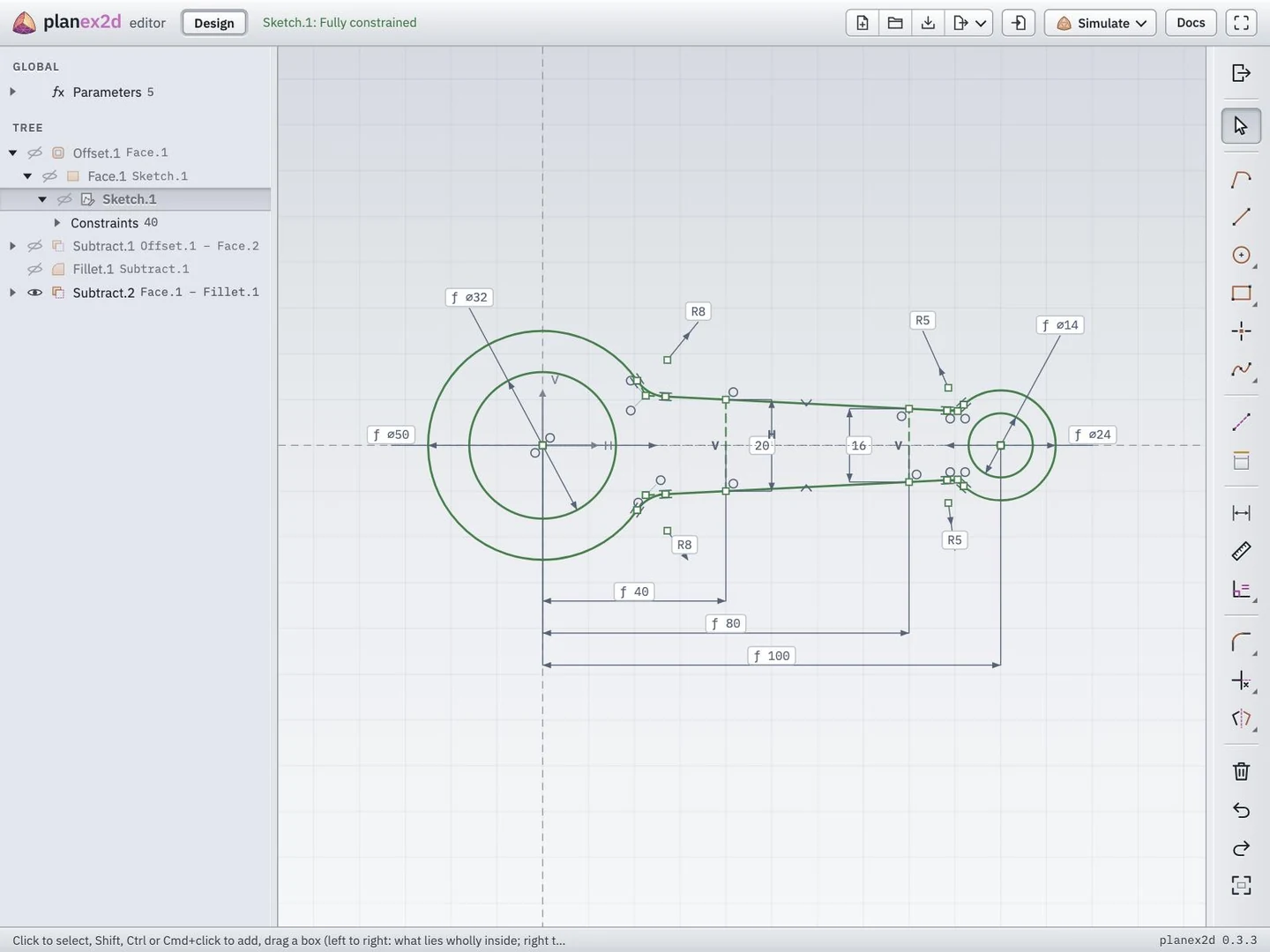
A sketch holds lines, arcs, circles, rectangles, polygons, oblongs, splines, B-splines and curves from formulas. Relations such as coincident, parallel, perpendicular, tangent, equal, concentric and symmetric, and dimensions of lengths, distances, radii, diameters and angles hold them, and planex2d's solver keeps them all while you drag a point or change a value. A dimension takes a number or a formula of the global parameters. Fillets, chamfers, offsets, trims, splits, mirrors and patterns work on the elements, and edges of other sketches and results come in as fixed references. Lengths are in millimeters. See Drawing in a sketch, Constraints and dimensions and Editing a sketch in the editor docs for every tool.
The tree of operations
Faces take the closed regions of a sketch, and wires its chains. Fuse, subtract, intersect, symmetric difference and glue combine faces, and split and trim cut a result with another. Offset, fillet and chamfer work on whole faces and wires, and mirror, move, rotate and the linear and circular patterns place copies. Each operation keeps its inputs, so a changed sketch carries through to the end. See The Design tree for every operation.
Properties and measures
Faces and edges of a result take a name, a color and netgen's mesh sizes, which the STEP file keeps for a mesh made with planex2d and netgen. Measure gives the length, the area, the centroid and the second moments of a result, or the distance between two of them. See Properties and Measuring for the fields and the values.
Files
Save and Open keep the whole part, with its sketches and parameters, in a project file. Import opens DXF, SVG, STEP and BREP files. Save as writes the selected results as DXF and SVG drawings or as STEP and BREP models, in millimeters, and STEP keeps their names and mesh sizes. See Files for the formats and their options.
How the editor works
The editor is a front end to the planex2d library: what you draw becomes planex2d calls, run in this tab.
- Load
The page loads Python and planex2d into this tab. Your browser keeps both in its cache, so later visits start faster.
- Sketch
Each element, relation and dimension is added to a planex2d sketch, whose solver places the elements.
- Build
Each operation in the tree runs its planex2d call on the results before it, and a change runs again what follows.
- Save, simulate or draw
The results are written as DXF, SVG, STEP or BREP files, meshed by netgen and solved by NGSolve in a simulation, or put on a sheet as planex2d drawings.
Simulations
The simulations are built into the editor. The Simulate tools in the Design toolbar add a stress analysis, plate frequencies, heat transfer, electrostatics, magnetics or a beam calculation of the selected result, as an item of the Simulations section below the tree. Each has a workbench of its own for the material, the supports and loads or the boundary conditions, the solver and the results, with probes in the view and a PDF report. Supports and loads go on the edges and holes named with Properties, and the mesh follows the sizes set there. The project file keeps every simulation, and a change of the design marks it out of date until it is solved again. netgen meshes the part and NGSolve solves it in this tab, with the same code as the site's simulation tools. See Simulations for the six types.
Drawings
The Drafting workbench makes technical drawings of the part. Its pages hold views of Design results and of STEP parts, sections, dimensions and center lines, tables and a title block after DIN EN ISO 7200, on sheets from A4 to A0 after DIN or ASME. planex2d dimensions each view automatically after DIN practice, and each dimension can be moved, restyled or replaced by hand. planex2d draws the views with OpenCASCADE, which the editor loads the first time Drafting opens. The pages are written as PDF, DXF or SVG, and the project file keeps the drawing with the part. See Drafting for its tools.
Limits
The editor works in 2D only, and extruding a part to a solid is not part of it. An imported drawing comes in as a result, not as an editable sketch. Drafting is still a work in progress, and its views take the page's scale, all but an isometric view.
Questions and answers
Is this 2D CAD free?
Yes. It runs in your browser without an account and without a download, and nothing you draw leaves your computer. The editor is built on planex2d, a Python library for exact 2D geometry.
Does it upload my drawing?
No. planex2d runs in this tab on Pyodide, so sketching, the operations and the files are all computed on your computer. The browser keeps a copy of your last part there, so a reload brings it back, and Save writes it to a project file of your own.
What is a constrained sketch?
A sketch whose lines, arcs and circles are held by relations, such as parallel, tangent or symmetric, and by dimensions. planex2d's solver places the elements so that all of them hold, and moves them when a dimension changes. The colors show the state of the sketch. Green elements are fully constrained, and red ones mark constraints that contradict each other. A dimension can take a formula of the global parameters, so one value can drive several sizes.
Can I open a DXF file?
Yes. Import opens a DXF, SVG, STEP or BREP file as a result in the tree, where faces, Boolean operations, offsets and the other operations take it like any sketch, and Save as writes it again as DXF, SVG, STEP or BREP. An imported drawing is a result, not a sketch with relations and dimensions.
Can I use it for laser cutting or CNC?
Save as DXF writes the selected results in millimeters, the outlines as lines, arcs and splines. Before cutting, the contour checker finds open contours, gaps and doubled lines in a drawing and repairs them.
Can I simulate the part?
Yes, in the editor itself. The Simulate tools in the Design toolbar add a stress analysis, plate frequencies, heat transfer, electrostatics, magnetics or a beam calculation of the selected result. Each simulation opens in a workbench of its own for the material, the supports and loads or the boundary conditions, and the results, and the project file keeps it with the part. A change of the design marks it out of date until it is solved again. netgen meshes the part and NGSolve solves it in this tab.
Can I make a dimensioned drawing of the part?
Yes. The Drafting workbench puts views of a Design result or of a STEP part on sheets from A4 to A0, after DIN or ASME, with sections, automatic dimensions, dimensions placed by hand, center lines, tables and a title block. Each dimension can be moved and restyled, and the pages are saved as PDF, DXF or SVG. Drafting is still a work in progress.
Does it work on a phone?
The editor is made for a mouse and a keyboard. On a phone the page shows a button that opens it on its own page instead of the frame.
Other tools on planex2d.org
Every tool runs on the planex2d library, in your browser.
-
Contour checker
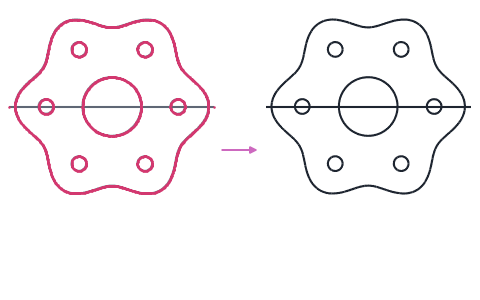
Open contours, gaps, doubled lines and tiny edges found in DXF, SVG and STEP drawings and repaired, with arcs fitted to tessellated outlines.
-
Stress analysis
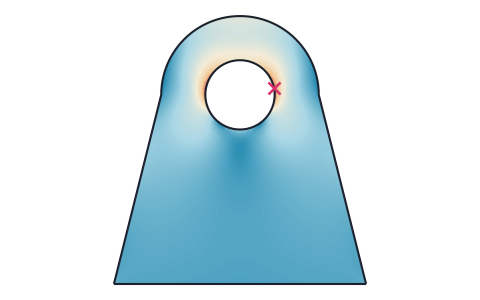
Finite element stress analysis of flat parts from DXF, SVG or STEP files, with supports and loads by edge and hole number, the von Mises and principal stresses, the deformed shape and a safety factor.
-
Section properties
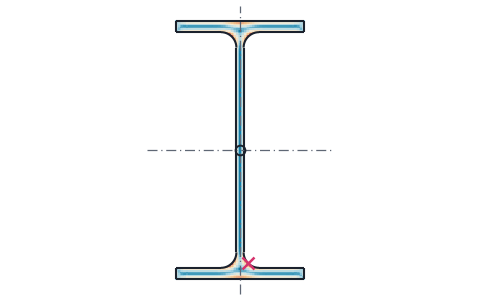
Area, centroid, second moments and section moduli of any drawn or standard section, the mass of a sheet part, and the torsion constant and shear center from a finite element solve.
-
Converters
DXF, SVG, STEP and BREP files converted into one another or into PDF and PNG, many at once and at true size, with arcs and circles kept exact.
-
Playground
planex2d code in the browser, with OpenCASCADE for 3D solids and netgen and NGSolve for finite elements, shared as a link that carries the code.
The planex2d Online Tools page lists every tool, and the planex2d documentation shows the library behind them.